Fonts are one of the most important parts of your site, especially if you’re within the blogging category. It is very crucial to make sure that your fonts or typography are readable and non-eye straining. It also helps in boosting your user’s experience while reading your blog. Within these reasons, you can definitely say that your website needs a proper customizing options in regards for your themes.
Yaatra Blog provides you with wide range of configuration possibilities in regards for your typography. You can customize your fonts in multiple aspects and present them to your readers
Let’s see how to do that, shall we?
- Navigate yourself from main section of the customize bar to Typography settings, General Settings>>Typography
There are two different options for you to select, after opening Typography setting bar.
- Body: Here, you can change the fonts of text that is showed in Body of your Archive/Blog, Page, and Posts
- Heading: In this section, you can change the heading of your Archive/Blog, Page, and Posts
Now, whether you go to Body or Heading option, the settings are made similar for you so that you can efficiently change the typography of both of your headings and body’s font.
Let’s look at what are in the inside settings of Typography:

You can customize your fonts in 5 different ways;
Font Family; You will have 9 different font families to choose from Font Family. You can choose any one of them based on your preference.
Font Weight; Font weight determines the weight of your font, or you can call it boldness. The option ranges from “Normal 400” to “Bold 700”.
Font Style: There are two basic options for you to choose in this category, Normal gives you normal text style like any other text here and Italic gives you italic style text like this: ‘Yaatra Blog’.
Font Transform; You can automatically transform your text, whether it may be your Body text or Heading to CAPITALIZE, UpperCase and lowercase.
Font Decoration: In this option, you can either underline your text or make a line-through text like this: ‘Yaatra Blog’
You can Inherit the font size, from your previous settings just by selecting Inherit option in Font Weight, Font Style, Font Transform, and Font Decoration.
This method is same for Heading section as well
Pro Features
Yaatra Pro consists of wide range of options for each section where you can customize your fonts. For example, you will have more than 950 Google Fonts. You can also change sizes and line heights for your font.
Except for Primary Menu,You can also customize the font colors for your Header and Body fonts
Specifical Customization for Primary Menu is also possible in Yaatra Pro. The configuration options are same as per the free versions with added options.
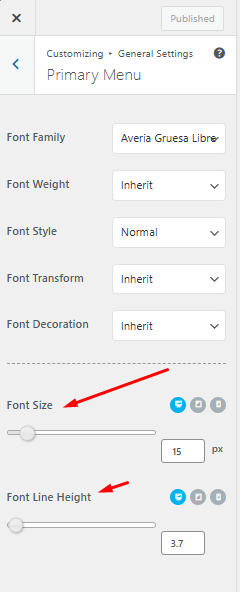
- Use sliders or box input field to adjust your font size and line heights.
Make sure to save your changes by clicking that Publish button.